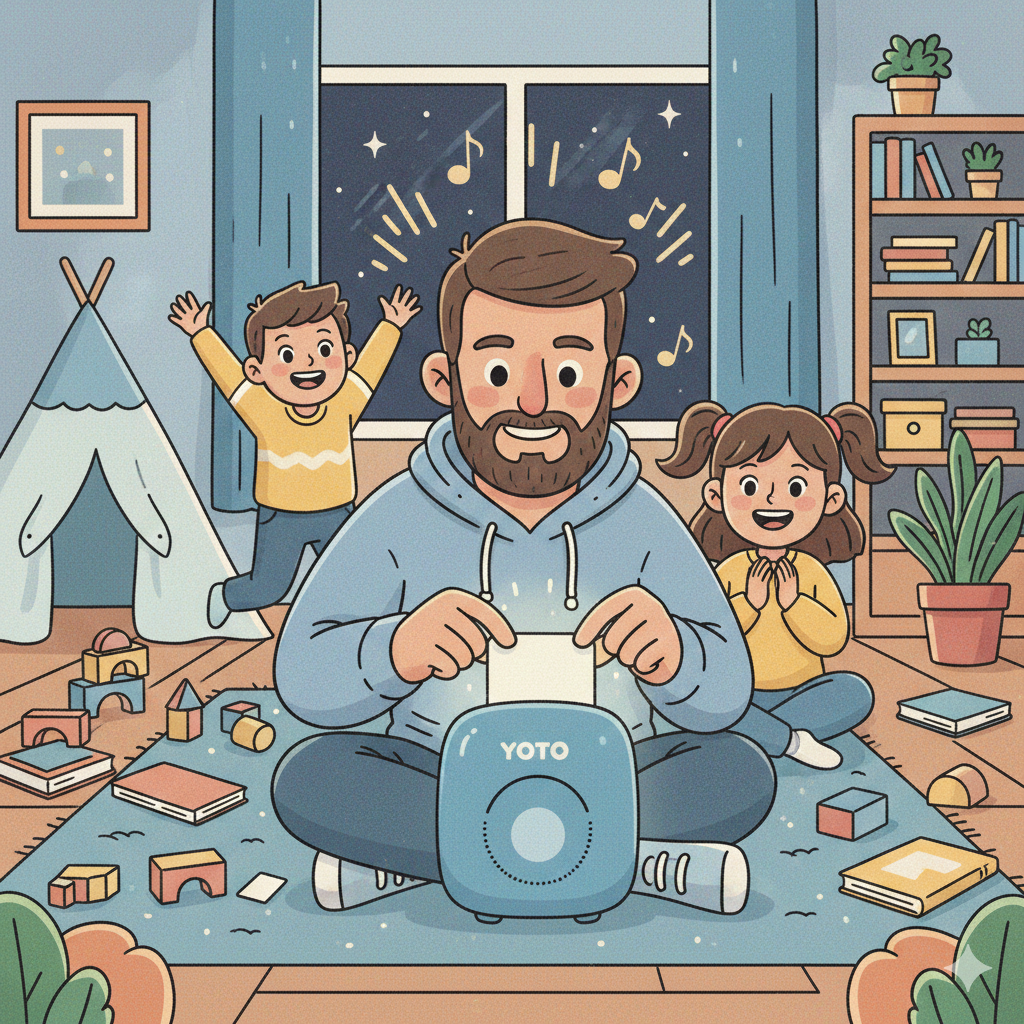
I want my kids to have access to music whenever they want. When I first introduced a tablet to my then 2-year-old, we used the “Lisa’s Music Band” app in Samsung Kids Mode. He loved playing the drums and other virtual instruments, but as he grew older, he moved away from the app and became more interested in the other “distractions” on the tablet.
To reduce screen time while still encouraging their love for music and audiobooks, we bought a Yoto Mini Player a couple of years ago (affiliate link). The Yoto Mini is a screen-free, kid-friendly speaker that lets little ones take charge of their favorite stories and music using physical cards. It’s a very tactile experience, reminiscent of popping a tape into a deck or a CD into a player- giving them a physical object to control what they hear.
It’s been a total game-changer! One of the best things about the Yoto is the ability to load it with our own content using compatible third-party cards. By using free music downloaded from our local library via Freegal, we’ve created custom playlists for each card. For example, we have a “Bluey” card decorated with stickers that contains all the albums: Bluey, Dance Mode, and Rug Island.
What You Will Need
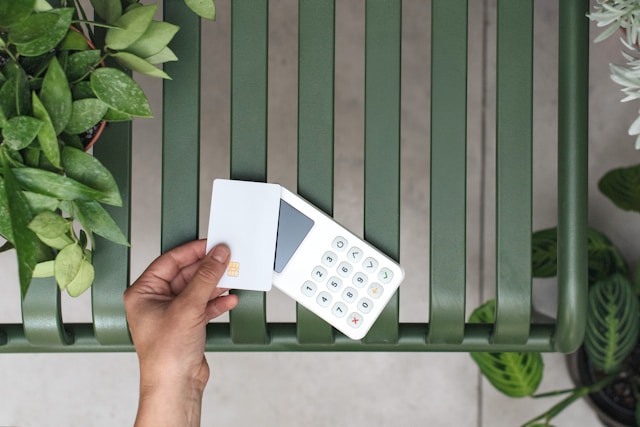
- Third-party NFC cards: Specifically, MIFARE Ultralight EV1 48B cards.
- Yoto “Make Your Own” (MYO) Card: If your Yoto didn’t come with one (affiliate link).
- An NFC writing app: Such as NXP Writer.
A quick note on cards: There are tons of NFC cards on Amazon, but many are not 48B, so be careful. If you’re like me and accidentally bought the wrong ones, I’ll show you how to still make use of them below.
Programming Your 3rd Party NFC & MYO Cards
Please do your research before trying third-party cards; I am not responsible if you happen to brick your cards! I actually bricked my first four cards because I didn’t realize I had bought 128B cards instead of 48B. While there are many guides online, many are missing crucial steps. After some trial and error, I found the following steps work every time- so be sure to follow them precisely.
- Plug to charge YotoPlayer without a card. You’ll need to your YotoPlayer to be charging without a card in order to download audio content linked to your temporary MYO card.
- Create a playlist and link it to a Yoto card in the normal way (either using your phone or the online Yoto player).
- On Desktop, click on MYO on the website
- Click on Visit library/Make Playlist
- Click on Add Playlist and fill out information for your playlist
- On Mobile Device, navigate to Library
- Click on the newly created Playlist
- Click on Link to a Card
- On Desktop, click on MYO on the website
- Insert the MYO card into the Yoto player to start playing the content and to link to your MYO card. You’ll be using the MYO as a temporary card to load the content into Yoto and to program the 3rd party NFC card.
- Remove the MYO card to download the playlist fully (i.e. no cloud symbol) while still plugged in.
- You can check download status on the mobile app under Yoto App>Settings>Yoto Player>Audio Download Status (3rd option)
- Swipe down to refresh status
- Copy the MYO card to the 3rd party NFC card using NXP Writer. Do this, while the content is downloading on the YotoPlayer.
- Click on Read
- Tap the temporary MYO card on your phone’s NFC. Most smartphones have their NFC located on the back of the device near the top rear, camera, or center.
- Keep note of the first 5 letters shown for the next step. Click on Done
- Select My Datasets
- Select the scanned 5 letters dataset (5.c.)
- Click Write
- Tap Formatted 48b card
- Click Tap to Confirm Store
- Tap the card again to confirm.
- DO NOT INSERT YOUR CARD into YotoPlayer until download is complete. Inserting the copied card will disrupt the download process and you may have to restart from step 2.
- Test. Once the download is complete. Enter your NFC card into your Yoto. If Bluey starts playing immediately (or whatever you loaded), you’ve nailed it!
- One thing to note, if you need to edit a playlist and card, you will need to start from step 2 after you edit your playlist.
Bonus: Formatting 128b cards to 48b
If you accidentally bought the wrong card, you may be able to format it into 48b using NXP Writer. This may work with other size cards, but I’ve only tested with 128b.
- Open NXP TagWriter
- Click on Erase tags
- Click on Erase & Format as NDEF, click YES
- Enter 48 and select Format
- Tap the card and click OK
- Tap again to format.
Conclusion
Switching to a Yoto Player has been one of the best decisions we’ve made for our wind down time. It’s given my kids the independence to choose their own soundtrack without me worrying about what they’re clicking on a screen. Plus, using cheap, third party NFC cards instead of MYO cards has saved us a ton of money while making their collection feel truly personal.
If you’re tired of the “screen struggle” but love the idea of a musical home, give this a try. Your library card (and your sanity) will thank you!
Leave a Reply